Technical Insights
Hosted Control Plane Tenant Clusters on OpenShift with Portworx

Summarize Blog With
Table of Content
Running a Kubernetes cluster inside a virtual machine is not a new idea. The useful part is making that cluster feel like a real platform for the team that owns it, without dedicating a new set of physical nodes every time a project needs isolation.
Red Hat OpenShift Hosted Control Planes provide the control-plane model. OpenShift Virtualization provides the worker-node model. Portworx and FlashArray provide the storage model.
This post focuses on how those pieces fit together, how to install Portworx, and why the storage design has two distinct layers.
Start with the Hosted Control Plane
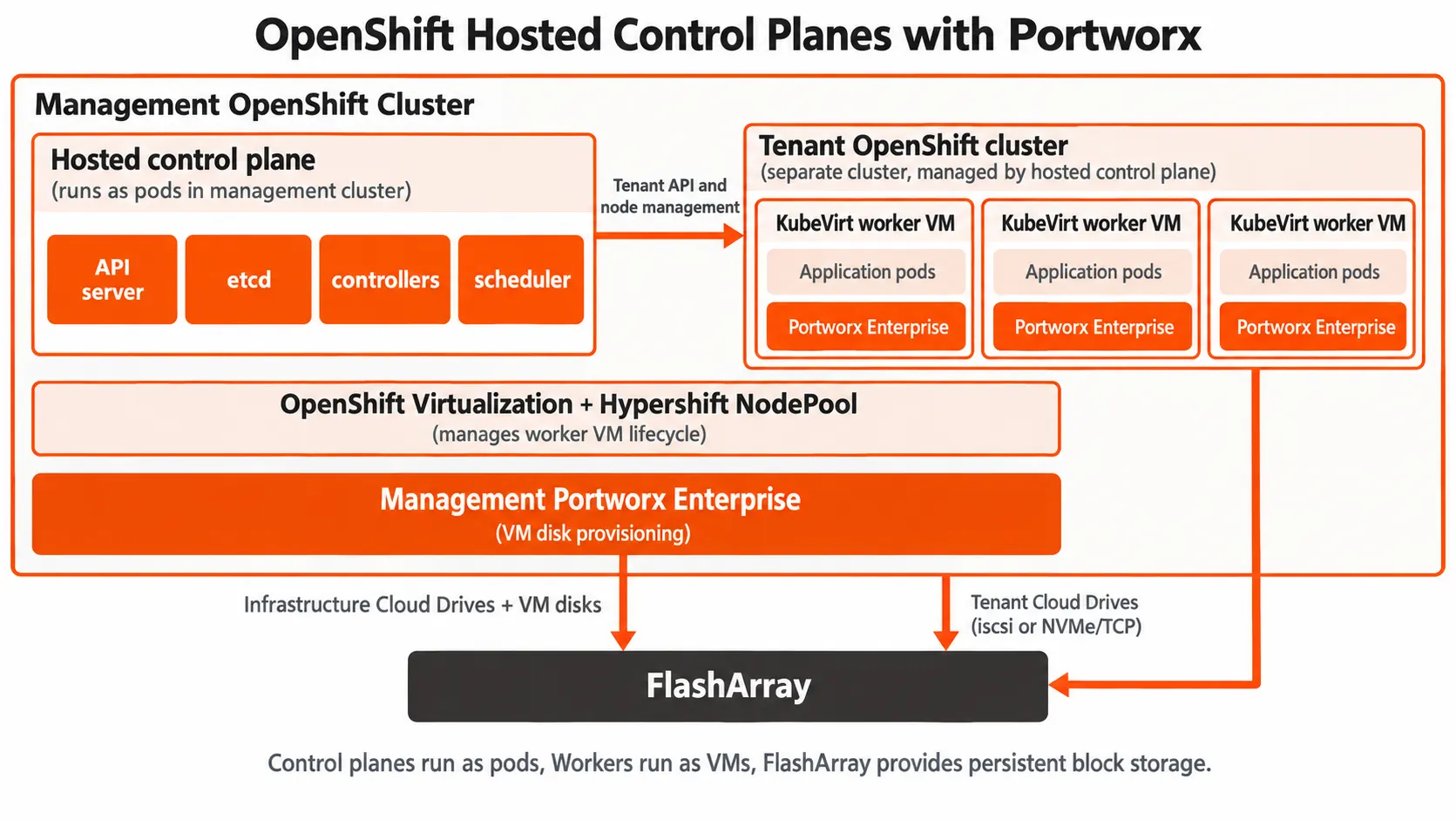
A hosted cluster separates the OpenShift control plane from its workers. The API server, etcd, controller manager, and scheduler run as pods in the management cluster. The worker nodes run as KubeVirt virtual machines created by a Hypershift NodePool.
Each hosted cluster has its own namespace, control-plane resources, worker VMs, and lifecycle. The management cluster supplies the shared infrastructure, but a tenant still receives a functional OpenShift cluster with its own API endpoint and workload boundary.
That separation matters for platform teams. A new tenant cluster does not require new bare-metal control-plane nodes. It requires a HostedCluster, a NodePool, and enough capacity in the management cluster to run the control plane and worker VMs.
The two storage layers
Hosted control planes introduce a storage detail that is easy to miss: there are two Kubernetes clusters making storage decisions.
The management cluster needs storage for its own Portworx services and for the boot and root disks of the tenant worker VMs. Portworx Enterprise on the management cluster uses FlashArray Cloud Drives for this infrastructure layer.
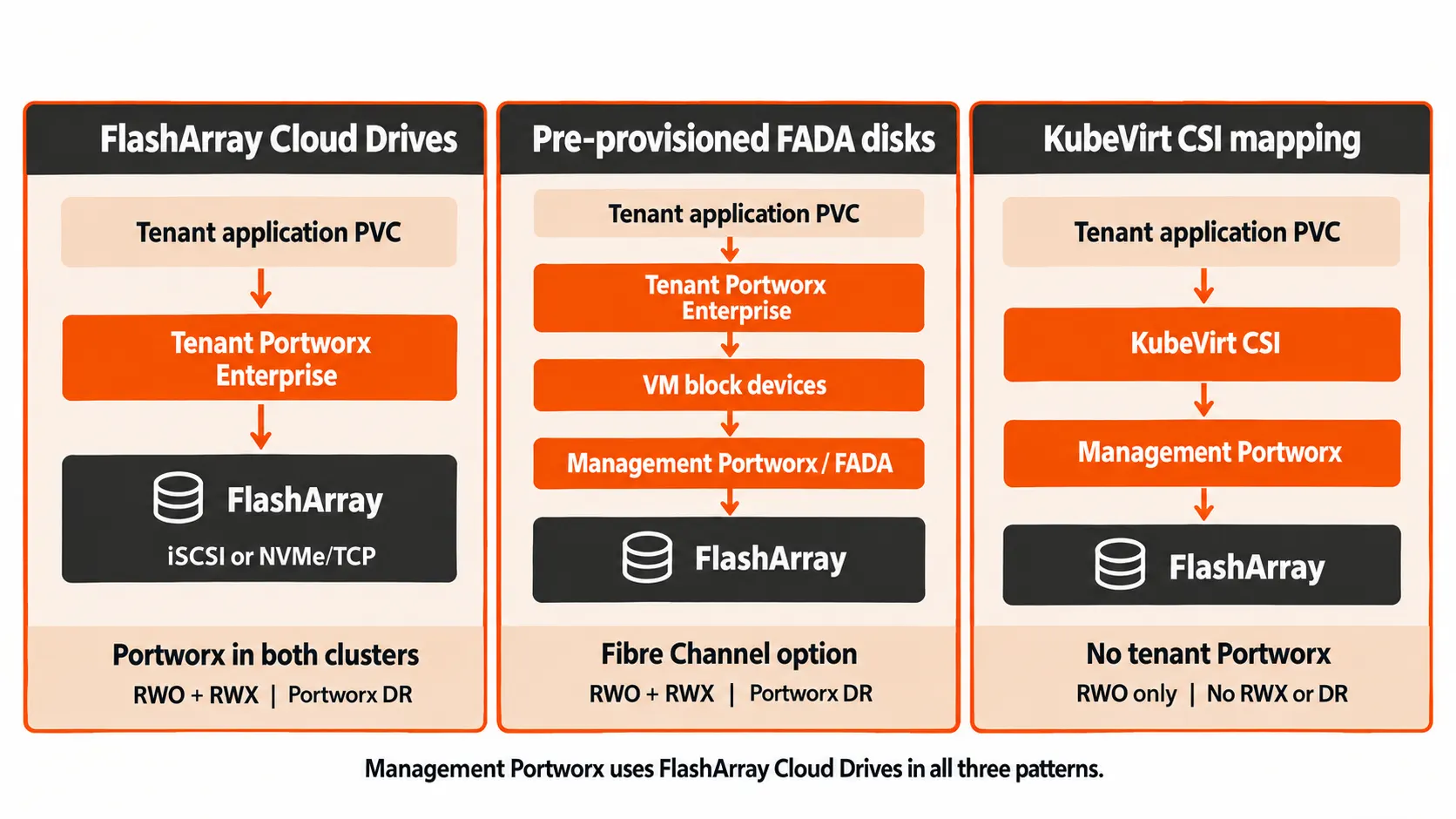
The tenant cluster then needs storage for application PVCs. Depending on what your applications are, the PVCs and features supported vary, so lets take a look at the three deployment choices:
- Portworx Enterprise in both clusters with FlashArray Cloud Drives in the tenant. This is the best fit when the tenant VMs can reach FlashArray over iSCSI or NVMe over TCP. Full featured PVCs and data services
- (Full cloud drive elasticity and autopilot capabilities, shared vols, Block vols, PX-DR..)
- Portworx Enterprise in both clusters with pre-provisioned FlashArray Direct Access volumes. This is the path for Fibre Channel environments. The management cluster provisions the raw block volumes and attaches them to the tenant VMs. Portworx consumes those devices as its tenant storage pool.
- (No Cloud drives in tenant cluster, no tenant cluster storage-pool autopilot mechanism, but full shared vols, block vols, and disaster recovery with PX-DR)
- KubeVirt CSI mapping. Portworx runs only in the management cluster, and the tenant StorageClass maps to a management-cluster StorageClass. This is simpler, but it supports RWO volumes only. It does not provide RWX volumes or tenant-cluster DR.
- (Most limited, no shared vols or PX-DR, basic block PVCs for applications)
The first two options put Portworx inside the tenant cluster. That is the important distinction when the tenant needs Kubernetes-native storage operations such as RWX, snapshots, expansion, policy-based provisioning, backup integration, and disaster recovery.
How to install it
The exact manifests depend on the OpenShift and Portworx versions in use, but the deployment sequence is consistent.
1. Prepare the management cluster
Install the operators required to host the environment:
- Multicluster Engine for Kubernetes, to create and manage hosted clusters
- OpenShift Virtualization, to run the worker VMs
- MetalLB, to expose hosted-cluster services such as the Kubernetes API
- NMState, only when the existing/default bridge network needs additional configuration
Why create a Linux bridge?
The NMState and NNCP steps are optional. If the existing/default bridge network already provides the worker VMs with the required FlashArray connectivity, reuse it and skip the custom bridge configuration below. Use NMState when you need a different bridge, VLAN, or uplink configuration.
For tenant Cloud Drives, the worker VMs need a storage interface that can reach FlashArray over iSCSI or NVMe over TCP. A Linux bridge acts as a Layer 2 software switch on each base cluster management node. It connects the VMs’ virtual interfaces to a dedicated storage uplink, providing a path onto the physical storage network rather than through the default pod network.
For the custom bridge example below, after installing the Kubernetes NMState Operator, create its NMState resource named nmstate. Then create a NodeNetworkConfigurationPolicy (NNCP) to define the bridge. The NMState resource enables network management; the NNCP describes the actual node configuration.
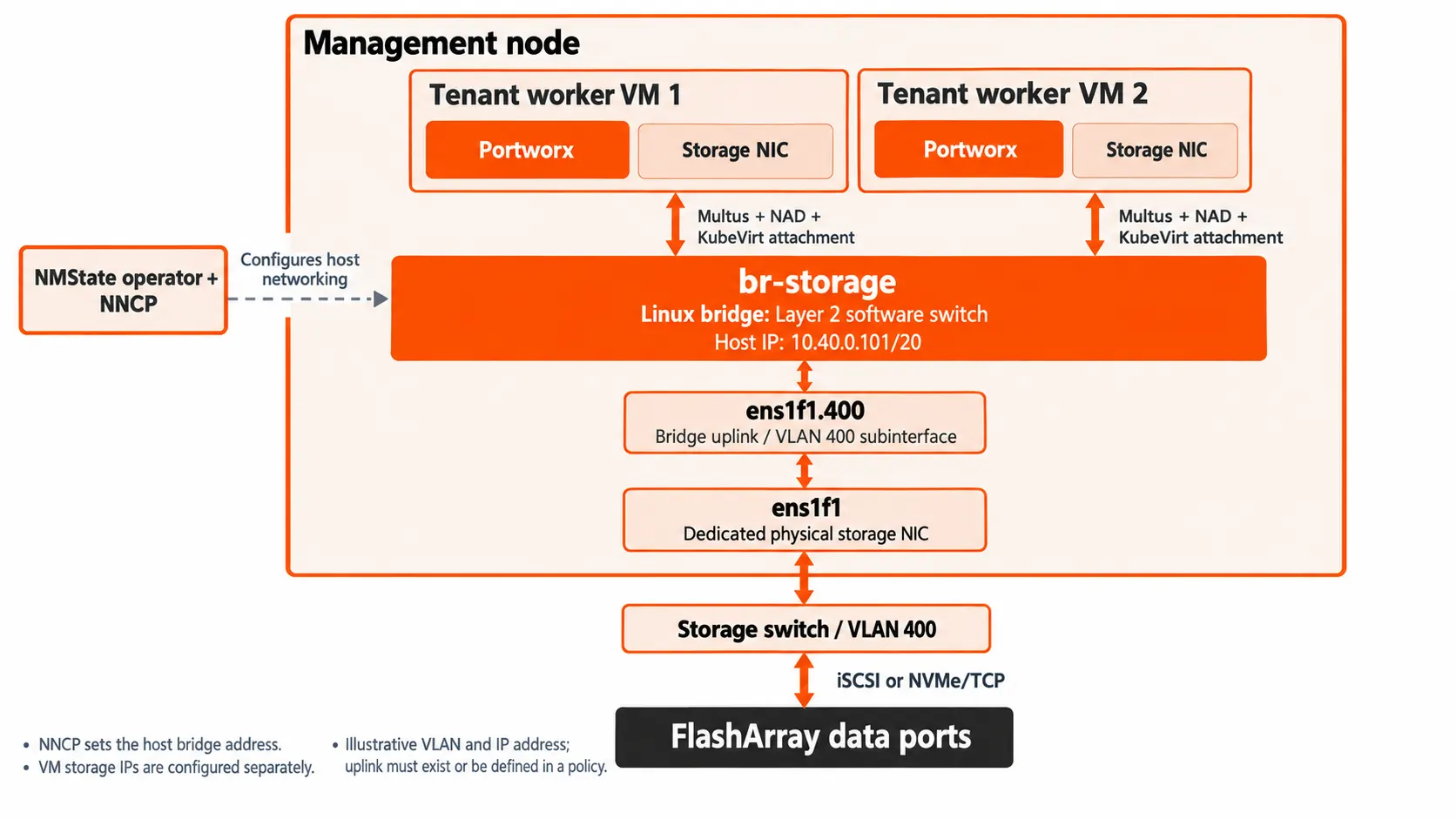
This NNCP example creates br-storage on one management node. The hostname and IP address are just examples and will vary in your own environment, and the uplink must already exist:
apiVersion: nmstate.io/v1

kind: NodeNetworkConfigurationPolicy

metadata:

  name: br-storage-worker-01

spec:

  nodeSelector:

    kubernetes.io/hostname: worker-01

  desiredState:

    interfaces:

      - name: br-storage

        type: linux-bridge

        state: up

        ipv4:

          enabled: true

          address:

            - ip: 10.40.0.101

              prefix-length: 20

          dhcp: false

        bridge:

          options: {}

          port:

            - name: ens1f1.400
- nodeSelector limits the policy to one node. With static host addresses, use a separate policy and unique address for each node. A shared DHCP policy can target multiple nodes with the same interface layout.
- bridge.port makes the uplink a member of the bridge. In the diagram, ens1f1.400 is a VLAN 400 subinterface of ens1f1. The interface name alone does not create a VLAN; configure it separately or include its VLAN definition in the policy.
- ipv4.address assigns an address to the host’s bridge, not to the worker VMs. Keep host storage addressing on the bridge rather than its member port.
Next, create a NetworkAttachmentDefinition that selects br-storage and references that network in the NodePool. Multus and KubeVirt provide the VM attachment; the NNCP does not create VM NICs or assign guest IPs. Configure the guest storage interface separately, and create the bridge on every management node that can host these VMs.
>If you need to scale, avoid hand-authoring each node’s NNCP. Where DHCP is available and nodes share the same bridge and uplink configuration, use one shared NNCP with a label-based node selector to configure the group as shown in section 1.6.1 of RedHat documenation. If unique static IPs are required, use templates or a custom script to generate node-specific policies from an IP inventory rather than maintaining each manifest manually.
Use a dedicated secondary storage interface. Do not repurpose the primary cluster interface or br-ex for this example, because changing those interfaces can disconnect a node. Verify the policy before attaching VMs:
oc get nncp br-storage-worker-01

oc get nnce
Finally, install the FlashArray multipath and udev configuration on the management nodes.
Deploy Portworx Enterprise on the management cluster with FlashArray Cloud Drives
Both the management cluster and hosted clusters must run a compatible Portworx Enterprise release. The current documentation requires version 3.6.2 or later for this topology.
2. Create the hosted cluster
Run this section against the management cluster. Use compatible OpenShift, MCE, OpenShift Virtualization, and Portworx releases. Replace the example addresses, names, and release-image placeholder with values for your environment.
Enable hosted control planes
In the existing MultiClusterEngine resource, enable Hypershift and local hosting. Preserve any other component overrides already configured:
apiVersion: multicluster.openshift.io/v1

kind: MultiClusterEngine

metadata:

  name: multiclusterengine

spec:

  overrides:

    components:

      - name: hypershift

        enabled: true

      - name: hypershift-local-hosting

        enabled: true
These components might already be enabled. Check the existing resource rather than creating a second MCE instance.
Provide LoadBalancer addresses with MetalLB
After installing the MetalLB Operator on the management cluster, create its instance, an address pool, and an L2 advertisement. This example assumes the operator uses the metallb-system namespace. Reserve an unused address range on a network reachable by the management nodes and API clients; do not overlap DHCP allocations.
Save this as metallb-hosted.yaml:
apiVersion: metallb.io/v1beta1

kind: MetalLB

metadata:

  name: metallb

  namespace: metallb-system

---

apiVersion: metallb.io/v1beta1

kind: IPAddressPool

metadata:

  name: hosted-api

  namespace: metallb-system

spec:

  addresses:

    - 192.168.50.240-192.168.50.250

---

apiVersion: metallb.io/v1beta1

kind: L2Advertisement

metadata:

  name: hosted-api

  namespace: metallb-system

spec:

  ipAddressPools:

    - hosted-api
oc apply -f metallb-hosted.yaml
Configure the hosted cluster’s API publishing strategy as LoadBalancer. The hosted-control-plane controller creates the API service, and MetalLB assigns its external IP. Creating the MetalLB instance alone does not create that service.
Allow wildcard routes on the management cluster’s ingress controller so the hosted cluster can reuse its ingress domain:
oc patch ingresscontroller default -n openshift-ingress-operator

  --type=merge

  -p '{"spec":{"routeAdmission":{"wildcardPolicy":"WildcardsAllowed"}}}'
This enables wildcard route admission, not DNS or firewall configuration. Ensure the hosted ingress names resolve correctly and allow the required API and HTTPS traffic. The default inherited ingress supports HTTPS on port 443, not plain HTTP on port 80.
Create the namespace and image-pull credential
Create the namespace that holds the HostedCluster, NodePool, and their credentials. Download your OpenShift pull-secret JSON and include authentication for any private release registries:
oc create namespace clusters

oc create secret generic hosted-pull-secret -n clusters

  --type=kubernetes.io/dockerconfigjson

  --from-file=.dockerconfigjson=./pull-secret.json
For the console workflow, create a reusable credential under Credentials, selecting the OpenShift Virtualization/on-premises option available in your MCE version. Use the clusters namespace and supply the pull secret, SSH public key, and optional base DNS domain. The registry secret above is an image-pull credential; it does not by itself create a reusable entry in the console’s credential picker.
Optionally attach an external network
Skip the NAD and custom NMState configuration if the default pod network already provides the required storage connectivity. Otherwise, create a NAD selecting the br-storage bridge from the previous section. The bridge must exist on every management node that can host these VMs.
The following storage-network.yaml uses Whereabouts IPAM. Its allocation range excludes the illustrative host bridge address, but you must also reserve addresses used by other hosts and array ports:
apiVersion: k8s.cni.cncf.io/v1

kind: NetworkAttachmentDefinition

metadata:

  name: storage-network

  namespace: clusters

spec:

  config: |-

    {

      "cniVersion": "0.3.1",

      "name": "storage-network",

      "type": "bridge",

      "bridge": "br-storage",

      "ipam": {

        "type": "whereabouts",

        "range": "10.40.0.0/20",

        "range_start": "10.40.0.200",

        "range_end": "10.40.0.250",

        "gateway": "10.40.0.1"

      }

    }
oc apply -f storage-network.yaml
On a management node, inspect the bridge’s routes:
ip route show dev br-storage
A connected route identifies the subnet and host address, not necessarily the gateway. Verify the gateway with your network configuration; omit it if this network needs no routed access. For DHCP, use the DHCP configuration supported by your Multus/KubeVirt setup instead of this Whereabouts example. Do not simply remove range from a Whereabouts configuration.
Configure VM root storage and the NodePool
In the console, select Infrastructure > Clusters > Create cluster > Red Hat OpenShift Virtualization > Hosted, and choose the credential created earlier. Before submitting, edit the generated manifests, because the Portworx-required InPlace upgrade setting is not exposed by the wizard.
Create this StorageClass on the management cluster for VM root disks. It uses the management Portworx installation, not the Portworx installation inside the tenant:
apiVersion: storage.k8s.io/v1

kind: StorageClass

metadata:

  name: px-rwx-block-kubevirt

provisioner: pxd.portworx.com

parameters:

  repl: "3"

volumeBindingMode: Immediate

allowVolumeExpansion: true
Save the StorageClass as px-rwx-block-kubevirt.yaml and apply it on the management cluster:
oc apply -f px-rwx-block-kubevirt.yaml
For OpenShift Virtualization 4.18.4 and earlier, add nodiscard: “true” under parameters before applying it as the documented workaround for incorrect discard handling with Portworx block devices.
Deploy the Tenant Cluster NodePool
The StorageClass does not set the PVC access mode or volume mode. Set ReadWriteMany and Block explicitly on the NodePool root volume for live migration. This example keeps the default pod network for primary node connectivity and adds a secondary storage network through the NAD:
apiVersion: hypershift.openshift.io/v1beta1

kind: NodePool

metadata:

  name: tenant-demo

  namespace: clusters

spec:

  clusterName: tenant-demo

  arch: amd64

  replicas: 3

  release:

    image: "quay.io/openshift-release-dev/ocp-release:<supported-release>-x86_64"

  management:

    upgradeType: InPlace

    inPlace:

      maxUnavailable: 1

    autoRepair: false

  platform:

    type: KubeVirt

    kubevirt:

      compute:

        cores: 8

        memory: 32Gi

      attachDefaultNetwork: true

      additionalNetworks:

        - name: clusters/storage-network

      rootVolume:

        type: Persistent

        persistent:

          storageClass: px-rwx-block-kubevirt

          size: 120Gi

          accessModes:

            - ReadWriteMany

          volumeMode: Block
Keep the generated HostedCluster and NodePool names consistent, and use the supported release image selected by the wizard. In the HostedCluster manifest, verify that spec.pullSecret.name references its generated pull secret, or hosted-pull-secret if you use the secret created above. Also verify that the APIServer service publishing strategy is LoadBalancer; preserve the generated settings for the other services.
Three settings deserve attention:
- Keep upgradeType: InPlace and autoRepair: false. Replacing worker VMs during upgrades or automatic repair can conflict with Portworx operations.
- For default-network-only deployments, set attachDefaultNetwork: true and omit additionalNetworks. Set it to false only when the external NAD replaces the default network and supplies all required node connectivity, including DNS, registries, and the tenant API. A secondary storage-only NAD can coexist with the default network; attaching a NAD does not inherently require disabling it.
- Size for your Portworx datastore and applications. The hosted-cluster guide’s 4-vCPU floor is not universal: current PX-StoreV2 requirements specify at least 8 cores. The example uses 8 vCPUs and 32 GiB of memory per VM; add capacity for your workloads.
Review and submit the generated manifests. Once deployment completes, the console displays the tenant’s console URL and access credentials. You can also generate its kubeconfig from the management cluster:
oc get hostedcluster,nodepool -n clusters

oc get svc -n clusters-tenant-demo

hcp create kubeconfig --namespace clusters --name tenant-demo

  > tenant-demo.kubeconfig

oc --kubeconfig ./tenant-demo.kubeconfig get nodes
The tenant now has its own API and console access, independent of the management cluster’s user interface.
3. Prepare the tenant VMs for FlashArray
Before installing tenant Portworx, verify that every worker VM can reach both the FlashArray management endpoint and its storage data ports. This walkthrough uses iSCSI; NVMe over TCP requires its corresponding prerequisites instead. Use unique initiator identities and apply the FlashArray multipath and udev settings to the guests.
Build 99-portworx-fa.yaml using the MachineConfig example and recommended file contents in the FlashArray preparation guide. For hosted clusters, deliver this MachineConfig through a management-side ConfigMap referenced by the NodePool, rather than assuming a MachineConfig applied to the management nodes also configures the guests:
oc create configmap tenant-demo-fa-config -n clusters

  --from-file=config=./99-portworx-fa.yaml

oc patch nodepool tenant-demo -n clusters --type=merge

  -p '{"spec":{"config":[{"name":"tenant-demo-fa-config"}]}}'
This patch assumes the example NodePool has no existing configuration references. If yours does, append the new reference while preserving them. Wait for the NodePool configuration rollout to complete before installing Portworx.
Identify the guest interface that reaches the array. Its name is not the management host’s br-storage or ens1f1.400. Set WORKER_NODE to an actual tenant worker name:
WORKER_NODE="replace-with-tenant-worker-name"

oc --kubeconfig ./tenant-demo.kubeconfig debug "node/$WORKER_NODE"

  -- chroot /host ip -br address
4. Install tenant Portworx with FlashArray Cloud Drives
The remaining installation targets the tenant cluster. This is a separate Portworx installation with its own storage pool and FlashArray credentials. It does not consume pre-attached local drives or use KubeVirt CSI mapping. Make sure you are using the correct oc context of the tenant cluster when applying the files below.
Register FlashArray credentials
Create a protected local pure.json file containing the FlashArray management endpoint and a suitable API token:
{

  "FlashArrays": [

    {

      "MgmtEndPoint": "fa-management.example.com",

      "APIToken": "<flasharray-api-token>"

    }

  ]

}
Create px-pure-secret in the same tenant namespace where Portworx will be installed. The name and pure.json key are required:
oc --kubeconfig ./tenant-demo.kubeconfig create namespace portworx

oc --kubeconfig ./tenant-demo.kubeconfig create secret generic px-pure-secret

  -n portworx --from-file=pure.json=./pure.json
Keep the token and file out of source control and published examples. Use the FlashArray secure-multitenancy options if array-side tenant boundaries are required.
Generate and deploy the Cloud Drive specification
In the tenant console, install the Portworx Operator from OperatorHub into the chosen namespace like you would on any other cluster. Then generate the StorageCluster in Portworx Central:
- Select Pure FlashArray as the platform and OpenShift as the distribution.
- Select Create Using a Spec for the drives, choose PX-StoreV2 version, and select iSCSI for this example. Enter a pool-drive size appropriate for the deployment, such as 500 GB.
- Select Kubernetes as the cloud-provider credential store so Portworx reads px-pure-secret. Confirm the generated StorageCluster uses the portworx namespace.
- For multiple guest NICs, set PURE_ISCSI_ALLOWED_IFACES to the actual guest storage-interface name, or comma-separated names for multiple paths. Configure it before installation. The Portworx data-interface setting controls node-to-node traffic, not FlashArray connections.
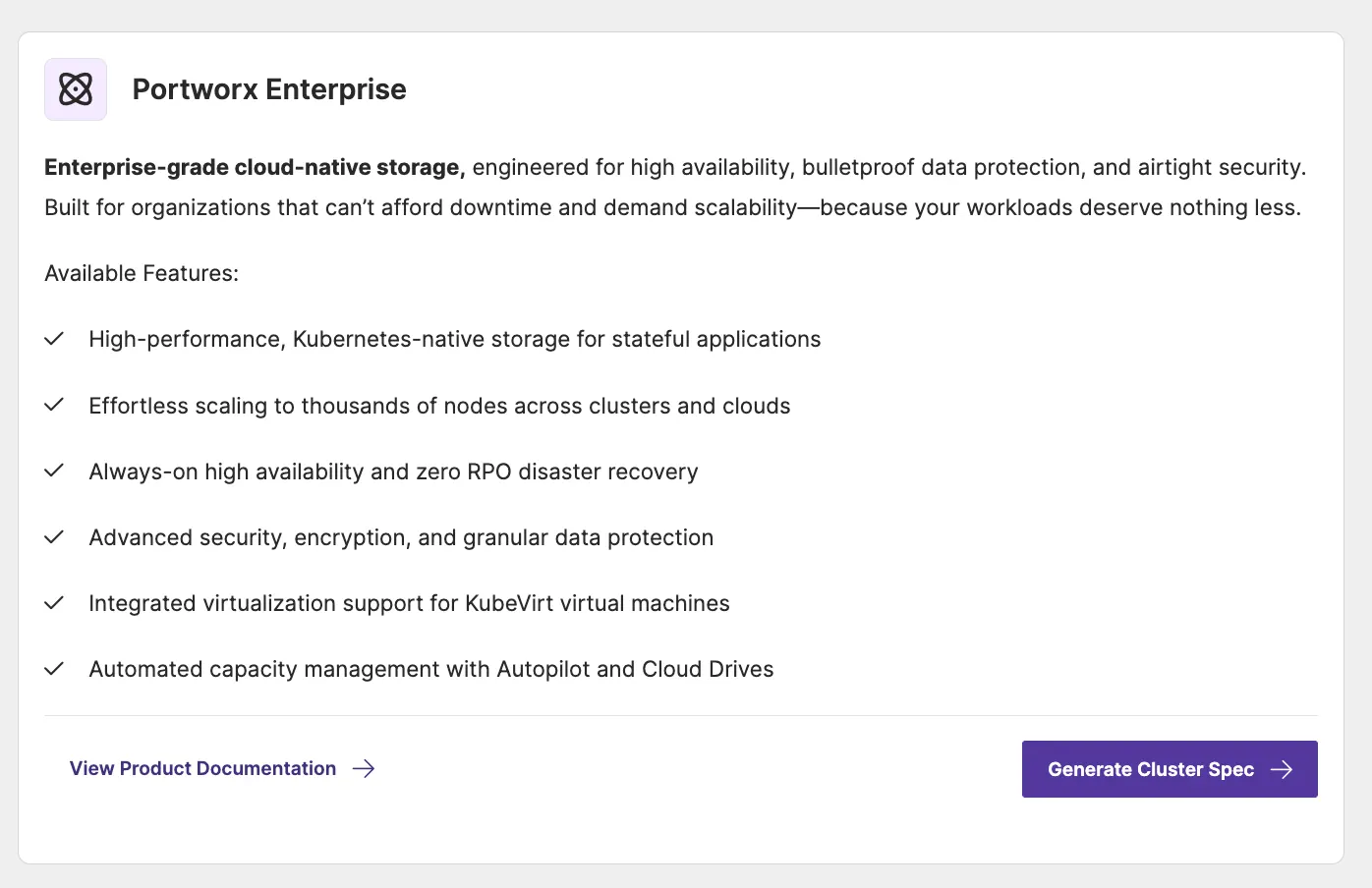
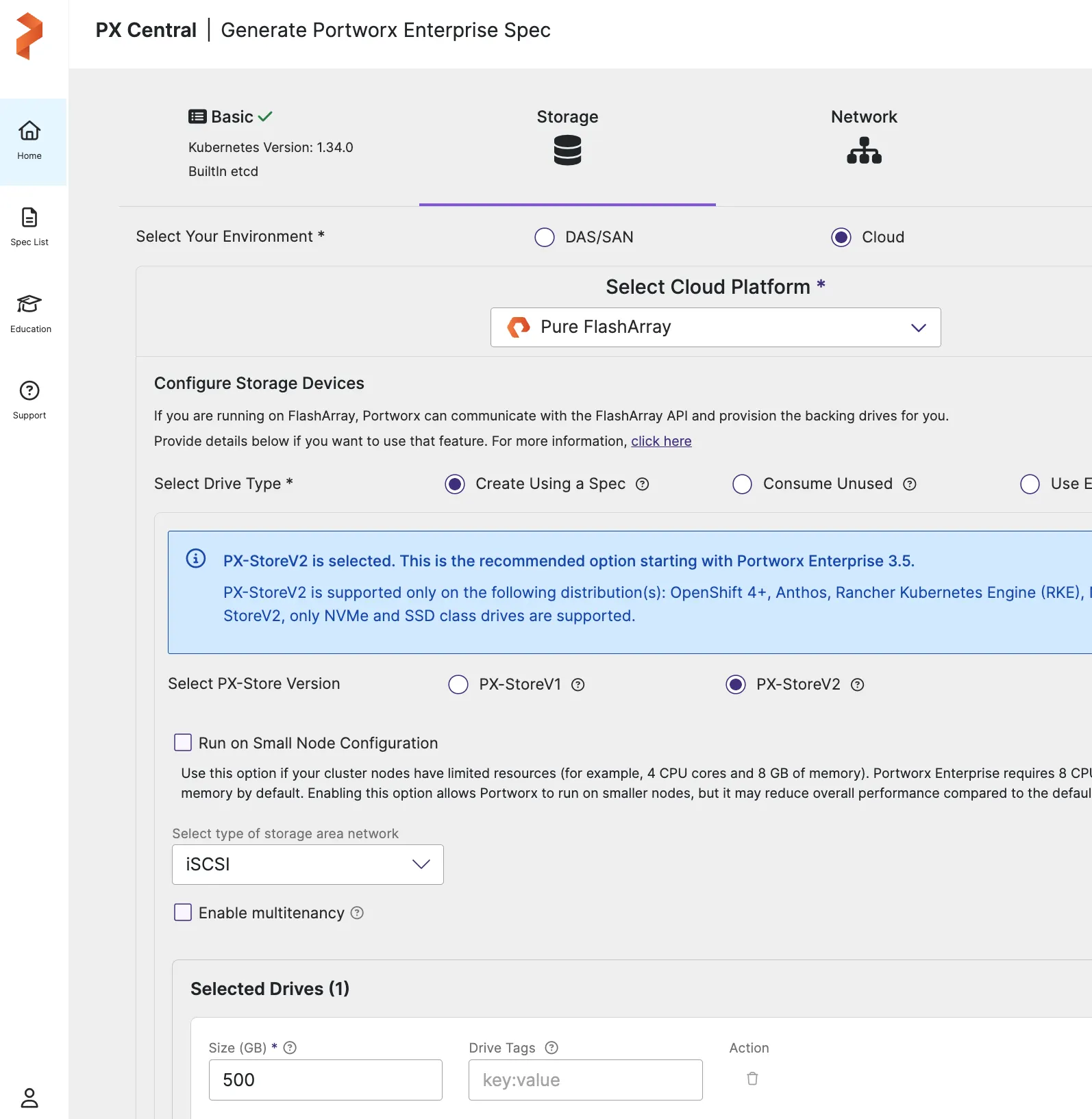
Download the complete generated specification as px-tenant-storagecluster.yaml. Confirm it uses spec.cloudStorage.deviceSpecs with a size specification such as size=500, rather than local device paths. Preserve the other generated OpenShift and datastore settings.
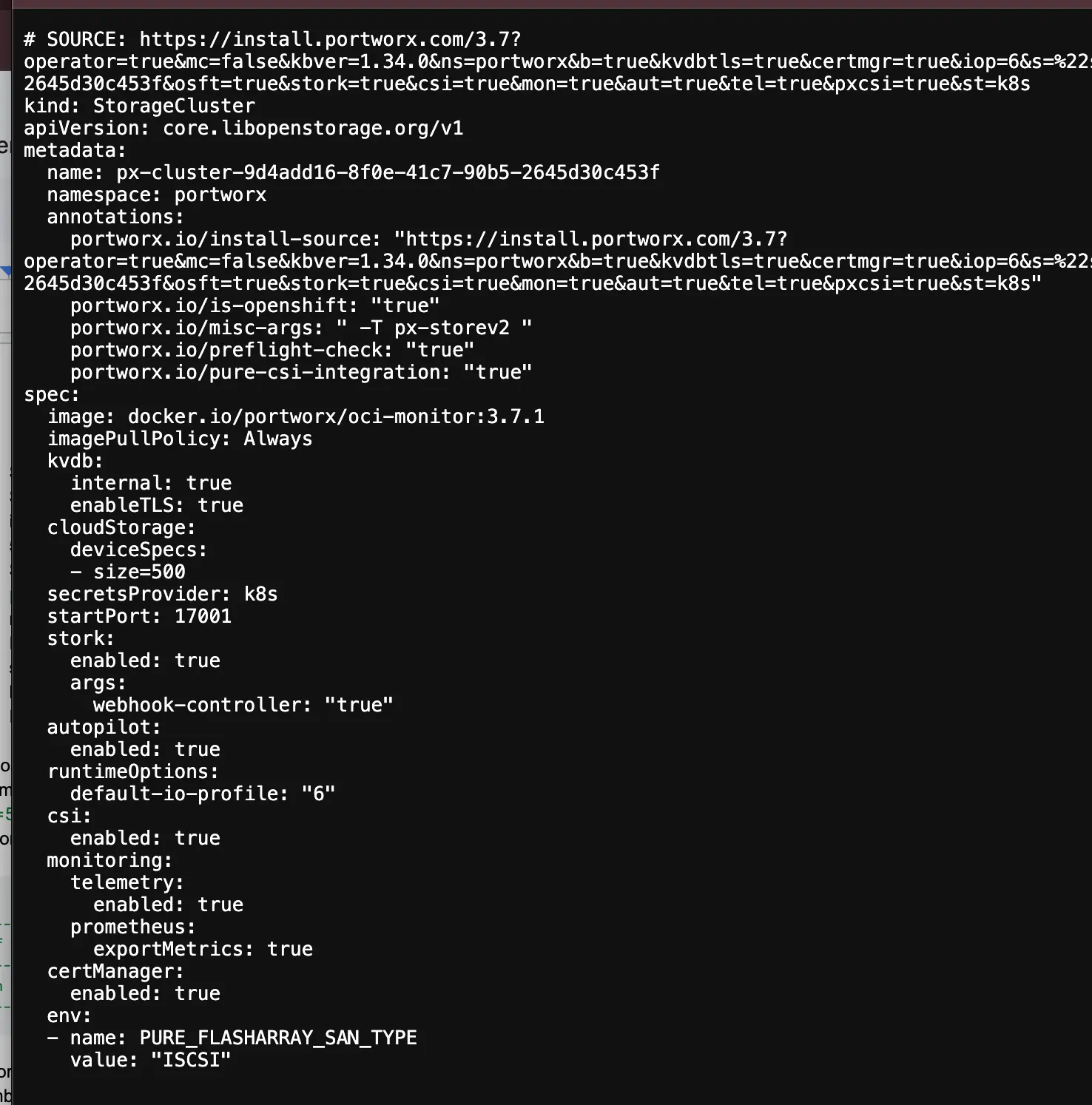
Then apply the StorageCluster spec file to your tenant cluster.
oc --kubeconfig ./tenant-demo.kubeconfig apply

  -f px-tenant-storagecluster.yaml

oc --kubeconfig ./tenant-demo.kubeconfig get storagecluster,storagenode

  -n portworx

oc --kubeconfig ./tenant-demo.kubeconfig get pods -n portworx
Portworx uses the FlashArray API to create Cloud Drives for the tenant storage nodes and assembles them into the tenant pool. Application PVCs allocate volumes from that pool; each PVC does not necessarily create a new FlashArray Cloud Drive.
Validate an application PVC
After the Portworx nodes are healthy, apply this example in the tenant cluster. The three-replica policy assumes three available Portworx storage nodes:
apiVersion: storage.k8s.io/v1

kind: StorageClass

metadata:

  name: px-tenant-apps

provisioner: pxd.portworx.com

parameters:

  repl: "3"

volumeBindingMode: Immediate

allowVolumeExpansion: true

---

apiVersion: v1

kind: PersistentVolumeClaim

metadata:

  name: px-cloud-drive-test

  namespace: default

spec:

  storageClassName: px-tenant-apps

  accessModes:

    - ReadWriteOnce

  resources:

    requests:

      storage: 8Gi
Save it as px-tenant-test.yaml, apply it with the tenant kubeconfig, and verify that the claim becomes Bound:
oc --kubeconfig ./tenant-demo.kubeconfig apply -f px-tenant-test.yaml

oc --kubeconfig ./tenant-demo.kubeconfig get pvc px-cloud-drive-test -n default
The VM root disks remain managed by infrastructure Portworx, while application volumes belong to the tenant Portworx pool backed by FlashArray Cloud Drives.
What FlashArray does, and what Portworx does
FlashArray is the persistent block-storage backend. It provides the performance, availability, and storage efficiency of the array platform.
Portworx is the Kubernetes data-management layer. It turns that block storage into cluster-native services: StorageClasses, replicated volumes, RWX access, expansion, snapshots, policy-based provisioning, and data protection workflows.
At the management layer, FlashArray-backed Cloud Drives provide the disks that keep the hosted control-plane environment and worker VMs running. At the tenant layer, Portworx either creates new Cloud Drives or consumes Direct Access devices to build an independent storage pool.
That division is why the architecture can provide both infrastructure efficiency and tenant autonomy. The physical array is shared, while the Kubernetes storage control plane can be independent per tenant.
Which option should you use?
Use Portworx with tenant Cloud Drives when the worker VMs can access FlashArray over iSCSI or NVMe over TCP and the tenant needs the full Portworx feature set.
Use Portworx with Direct Access volumes when Fibre Channel is the required storage protocol or when the tenant should not connect directly to the array. The management cluster presents the devices, and Portworx manages them inside the tenant.
Use KubeVirt CSI mapping when the goal is simple RWO storage and the platform team does not need Portworx installed in every tenant. This option is operationally lighter, but it is not equivalent to running Portworx in the hosted cluster.
The practical outcome
Hosted Control Planes reduce the infrastructure needed to provide isolated OpenShift clusters. Portworx makes the storage inside those clusters look and behave like a native Kubernetes service. FlashArray supplies the durable block-storage foundation at both layers.
The result is a tenant model that can scale by adding namespaces, NodePools, and worker VMs instead of dedicating a new physical cluster to every team. The control plane is centralized, the workload plane remains isolated, and storage operations stay inside the Kubernetes workflows that platform teams already use.
Recommended for you