How To
Secure Boot for Portworx Enterprise


Summarize Blog With
Table of Content
Modern virtualization platforms have hardened almost every layer of the stack. Images are scanned, workloads are admission-controlled, traffic is encrypted, and secrets live in a vault. Yet one layer routinely escapes that scrutiny: the code that loads before any of those controls exist. A kernel module runs with full privilege, and nothing in the container runtime can vouch for it.
UEFI Secure Boot closes that gap by refusing to load anything the platform cannot cryptographically verify — which is exactly why it has so often been the thing standing between a hardened node and a working storage layer. Portworx Enterprise 3.6.0 removes that trade-off. The kernel modules ship signed, so the security team keeps Secure Boot enforced and the platform team keeps its storage. What used to be a policy exception becomes a one-time enrollment step.
What is Secure Boot?
UEFI Secure Boot is a firmware feature that allows only signed and trusted code to load during system boot. At each stage of startup, the platform validates the next component against a set of enrolled certificates. Anything unsigned, or signed by a key the platform does not trust, is refused.
Applied to Portworx, this means:
- Signed kernel modules: Portworx Enterprise 3.6.0 and later ship kernel modules signed by a Pure Storage certificate.
- One-time enrollment: The Portworx signing certificate must be added to the system’s Machine Owner Key (MOK) list before Portworx is installed.
- Persistent trust: Once enrolled, the certificate survives reboots, kernel upgrades, and OS updates. It lives in firmware, not in the operating system.
- Supported platforms: RHEL, RHCOS, and Ubuntu worker nodes.
Secure Boot architecture with Portworx
Secure Boot is a chain of trust, and the Portworx certificate is one link in it. Understanding where that link sits explains why enrollment has to happen at the console rather than through Kubernetes.
- UEFI firmware (PK, KEK, db): The platform keys shipped by the hardware or hypervisor vendor. These validate the bootloader.
- Shim and the MOK list: Shim is the signed first-stage bootloader. It maintains the Machine Owner Key list, which is where an administrator can add their own trusted certificates without touching vendor keys.
- Portworx signing certificate: Published by Pure Storage as portworx-public.der and enrolled into the MOK list. The current certificate is issued by “Portworx Secure Boot CA @2025”.
- Kernel platform keyring: At boot, the kernel imports enrolled MOK certificates into its .platform keyring. This is what the module loader checks against.
- Portworx kernel modules: When Portworx starts, the kernel verifies the signature on each module it loads — px.ko, btrfs.ko and zstd_compress.ko — against the keyring. A match loads the module; a mismatch refuses it and Portworx cannot start.
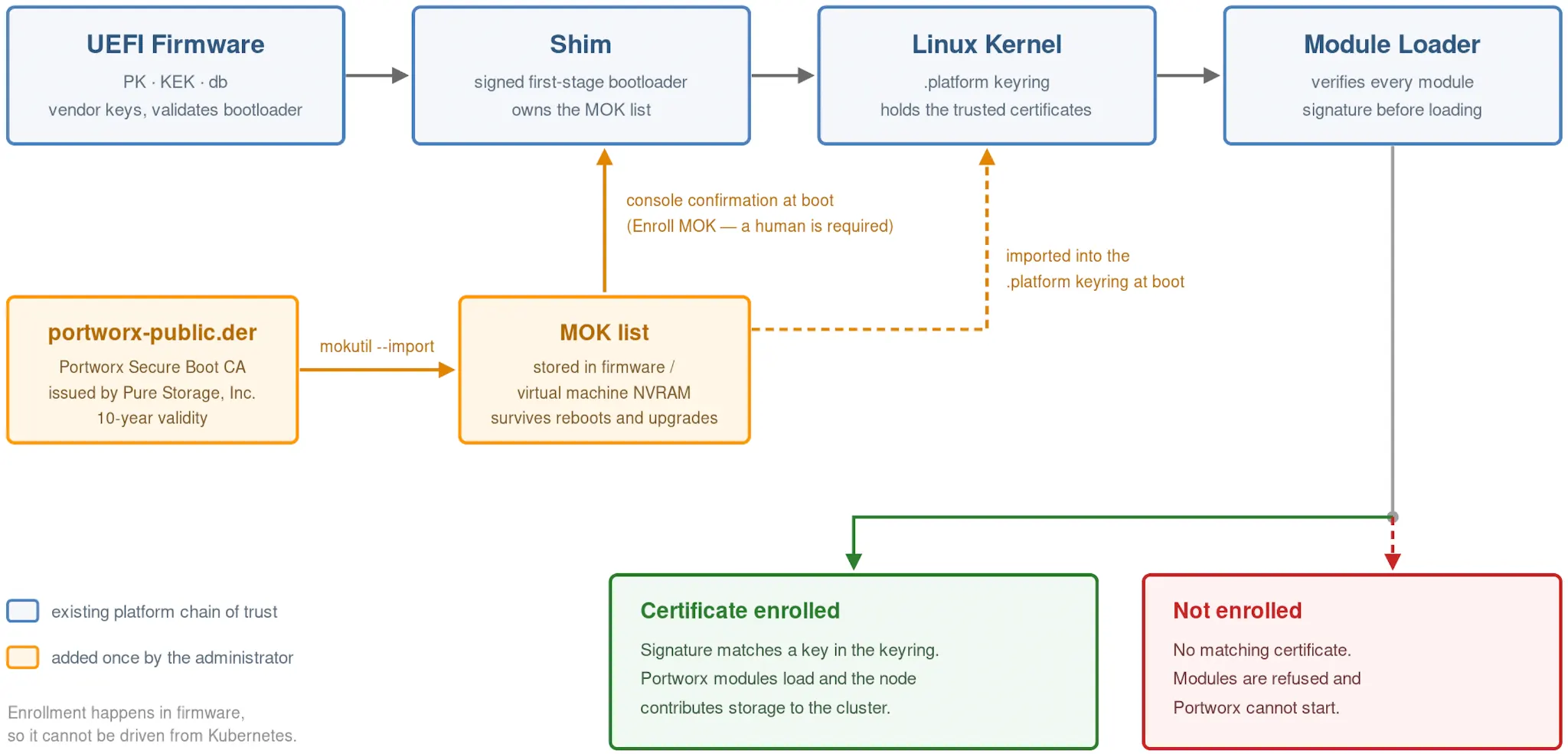
Secure Boot chain of trust with the Portworx signing certificate enrolled
Because the MOK list lives in firmware, enrollment cannot be automated from inside Kubernetes. Portworx does not enroll the certificate for you. The step is manual, performed once per node at the VM or host console, and it must be done before Portworx is installed.
Prerequisites
- Portworx Enterprise 3.6.0 or later. Earlier versions do not ship signed modules.
- Secure Boot enabled in firmware. This is a platform setting rather than an operating system one, and it is enabled differently on bare metal than on each hypervisor. The next section covers every platform; the one after it walks through VMware vSphere in detail.
- Console access. VGA, serial, or out-of-band management. The MOK prompt appears during early boot, before the kernel starts, and SSH is not available at that point.
Enabling Secure Boot in firmware
Before the Portworx certificate has anything to plug into, Secure Boot itself has to be switched on at the platform level. Where that setting lives depends on what the node runs on, but the outcome is the same everywhere: the firmware begins enforcing signature checks, and the guest reports SecureBoot enabled.
- Bare metal servers: Enter UEFI setup during POST (typically F2, F10 or Del), find Secure Boot under the Security or Boot menu, set it to Enabled, and save. The firmware must already be in UEFI mode rather than legacy BIOS or CSM.
- VMware vSphere: A per-VM setting under Boot Options, requiring EFI firmware. Covered in detail in the next section.
- Microsoft Hyper-V: Generation 2 VMs only. In VM Settings → Security, select Enable Secure Boot and set the template to “Microsoft UEFI Certificate Authority” for Linux guests. The default Windows template will not boot a Linux distribution.
- KVM and libvirt: Use an OVMF firmware image with Secure Boot support (the .secboot variants) together with the q35 machine type and SMM enabled. Secure Boot cannot be enforced without SMM.
- Nutanix AHV and other platforms: Most modern hypervisors expose Secure Boot as a per-VM UEFI option. Check your platform documentation, and confirm the result inside the guest rather than trusting the checkbox.
Whatever the platform, verify from inside the operating system before going further. This is the only check that reflects what the kernel will actually enforce:
# Confirm the guest sees Secure Boot as active
sudo mokutil --sb-state
    SecureBoot enabled
Confirming Secure Boot is enforcing, from inside the operating system
Enabling Secure Boot on VMware vSphere VMs
On vSphere, Secure Boot is a per-VM setting that requires EFI firmware rather than BIOS. The procedure below is the VMware-specific version of the step described above; the enrollment that follows is identical on every platform.
Check these before you start, because getting them wrong produces a VM that will not boot:
- VM hardware version 13 or later (vSphere 6.5+). Older hardware versions do not expose the Secure Boot option.
- Guest OS installed in UEFI mode. Switching an existing BIOS VM to EFI will leave it unbootable, because the guest has no EFI system partition. Most current Linux distributions deployed from modern installers are already UEFI, but confirm rather than assume.
- VM powered off. Firmware and Secure Boot cannot be changed while the VM is running.
Enabling Boot Options through the vCenter GUI
The full click-path in the vSphere Client, from the inventory tree down to the setting itself:
- Log in to the vSphere Client and open the Hosts and Clusters or VMs and Templates inventory view.
- Select the virtual machine, then Actions → Power → Shut Down Guest OS (or Power Off). The VM must be fully powered off — the Boot Options fields are greyed out while it is running.
- With the VM still selected, choose Actions → Edit Settings.
- Switch from the Virtual Hardware tab to the VM Options tab.
- Expand the Boot Options section.
- In the Firmware dropdown, select EFI. The Secure Boot checkbox stays disabled until you do this — it is not offered for BIOS firmware.
- Select the Secure Boot checkbox that appears beside the Firmware dropdown.
- Click OK to save, then Actions → Power → Power On.
While you are in Boot Options, it is worth noting the Boot Delay field. It does not affect the MOK prompt, which comes later from shim rather than from firmware, but a short delay makes it easier to have the console open and focused before the boot sequence starts.
Doing it at scale
For more than a handful of nodes, drive the same change from PowerCLI instead of clicking through each VM:
# Enable EFI firmware and Secure Boot on a powered-off VM
$vm = Get-VM px-secure1
$spec = New-Object VMware.Vim.VirtualMachineConfigSpec
$spec.Firmware = "efi"
$spec.BootOptions = New-Object VMware.Vim.VirtualMachineBootOptions
$spec.BootOptions.EfiSecureBootEnabled = $true
$vm.ExtensionData.ReconfigVM($spec)
Enabling Secure Boot with PowerCLI
You can confirm the setting from govc without opening the UI:
# Firmware type and Secure Boot state as recorded by vCenter
govc object.collect -s vm/px-secure1 config.firmware
govc object.collect -s vm/px-secure1 config.bootOptions.efiSecureBootEnabled

# And from inside the guest, once it is back up
sudo mokutil --sb-state
    SecureBoot enabled
Verifying Secure Boot from vCenter and from the guest
One vSphere-specific point worth knowing before the next section: the UEFI Secure Boot keys are stored in the VM firmware, in the NVRAM file that sits alongside the VMDKs in the datastore. That detail is what makes the template approach below work.
Enrolling the Portworx Secure Boot certificate
Confirm Secure Boot is active, download the certificate, import it, and complete the enrollment at the console during reboot.
Steps 1 to 4 are ordinary shell commands. SSH to the Kubernetes node and run them there no special boot mode or recovery environment is needed. Only the final confirmation happens at the console, because it runs before the operating system has started.
# 1. Confirm Secure Boot is enabled on the node
sudo mokutil --sb-state
    SecureBoot enabled

# 2. Download the Portworx signing certificate
#    Take the current directory from the Portworx documentation
curl -O https://mirrors.portworx.com/build-results/pxfuse/certs/<certificate-directory>/portworx-public.der

# 3. Confirm you received a certificate, not an error page
openssl x509 -inform der -in portworx-public.der -noout -subject -dates

# 4. Import the certificate into the MOK list
#    You will be prompted to set a temporary password
sudo mokutil --import portworx-public.der

# 5. Reboot to complete enrollment at the console
sudo reboot
Downloading and importing the Portworx Secure Boot certificate
Take the certificate directory from the Portworx documentation rather than hardcoding it into a script, because it rotates. Note too that the directory year and the certificate’s CA year do not track each other, so confirm what you actually downloaded with openssl before enrolling it. And a mistyped path returns an HTML error page rather than an error code, which mokutil will happily refuse later for reasons that are not obvious. The openssl check in step 3 catches both.
On reboot, the Shim UEFI key management utility appears. You have roughly ten seconds to respond, so have the console open before you reboot. Select Enroll MOK → Continue → Yes, enter the temporary password you set in step 4, then select Reboot.
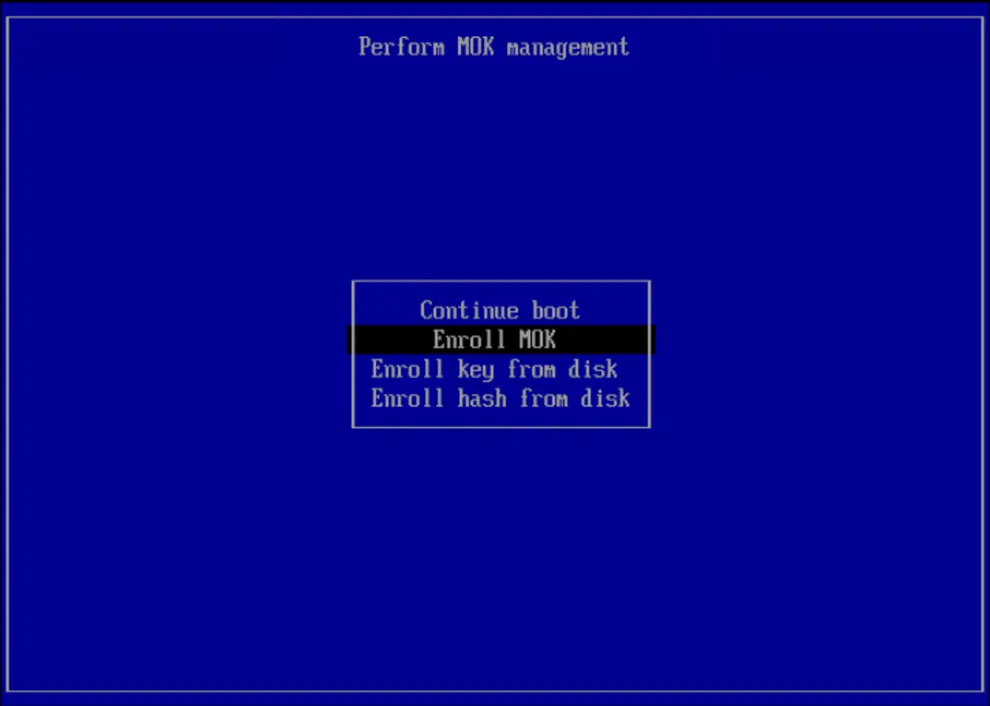
The MOK manager appears during early boot, before the Linux kernel starts
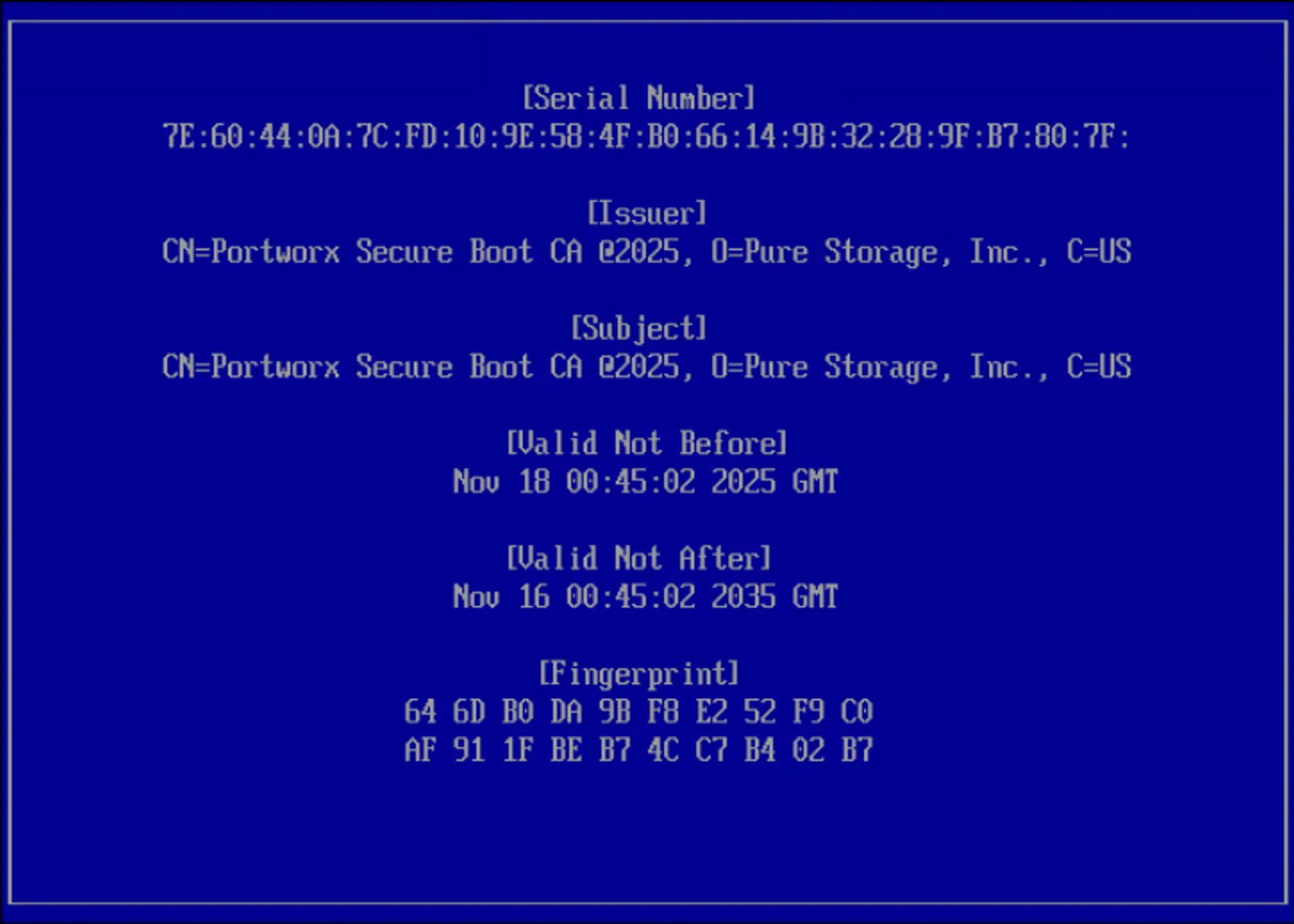
Optionally view the key to confirm it is the Portworx certificate before continuing
Choose a password you can retype without looking. Some firmware consoles assume a US keyboard layout, and the prompt gives no feedback on a mistyped character.
Do it once: enroll in a golden VM template
In virtualized environments, the ten-second console window is the part that does not scale. There is a better path.
UEFI Secure Boot keys (PK, KEK and db) are stored in the VM firmware NVRAM, and converting a VM into a template preserves that Secure Boot database. Enroll the certificate once in a golden template, and every VM cloned from it inherits the trusted certificate automatically. No per-node console work, and no risk of a new node joining the cluster without the certificate.
The workflow on vSphere:
- Build a base VM with EFI firmware and Secure Boot enabled, as described above.
- Enroll the Portworx certificate on that VM using mokutil, completing the MOK prompt at the console once.
- Verify with keyctl that the certificate is in the platform keyring.
- Power off the VM and convert it to a template, or clone to template.
- Deploy all Portworx nodes from that template. Each clone carries the enrolled certificate in its own NVRAM.
The same principle applies outside vSphere. Any platform that preserves UEFI variables in a reusable image — a Hyper-V VM export, a libvirt/OVMF base image with its own NVRAM file, or an image built with a tool such as Packer — can carry the enrolled certificate forward the same way. On bare metal the equivalent is a documented build step in the server provisioning runbook, since firmware cannot be cloned.
If the Portworx signing certificate is ever replaced or renewed, update the template before deploying additional VMs from it.
During the renewal overlap window, nodes cloned from a template that has not been updated receive only the old certificate. So verify inheritance on the first clone:
# On the first node cloned from an updated template
ssh $SSH_USER@<new-node> 'sudo keyctl list %:.platform | grep -ci portworx'

# 0 means the template was never updated - stop the rollout
Confirming a cloned node inherited the trust database from its template
Enabling Secure Boot on an existing Portworx cluster
Secure Boot does not have to be decided before a cluster is built. You can turn it on for a Portworx cluster that is already running, and the work proceeds node by node rather than as a cluster-wide event. Only the node being converted reboots; the rest of the cluster keeps serving storage throughout.
For each node in turn:
- Check the firmware type first. Confirm the node already boots in UEFI mode.
- Drain the node. Cordon and drain it as you would for any maintenance reboot, so workloads move off cleanly.
- Enroll the certificate. Download and import the Portworx certificate with mokutil over SSH, as described above.
- Enable Secure Boot in firmware. Power the node off, switch the firmware setting on, and power it back on.
- Complete enrollment and verify. Confirm the enrollment at the console, then check mokutil –sb-state and keyctl before uncordoning.
- Move to the next node. Only start the next node once the previous one is back in the cluster and healthy.
One VMware-specific warning is worth repeating here, the VMs must already boot using UEFI. Switching a BIOS-based VM directly to EFI can leave it unbootable, since the guest has no EFI system partition. Check the firmware type on every node before you begin.
Verifying the enrollment
After the node comes back up, confirm the certificate is present in the kernel keyring. This is the check that matters, and it is worth running across every node in the cluster.
# Secure Boot state and enrolled Portworx certificate
sudo mokutil --sb-state
sudo keyctl list %:.platform | grep -i portworx

    asymmetric: Pure Storage, Inc.: Portworx Secure Boot CA @2025: 255a9319...

# Confirm nothing is still pending enrollment
sudo mokutil --list-new

# End-to-end proof: the kernel accepted a signed Portworx module
lsmod | grep pxd
sudo modinfo pxd | grep -iE "sig|signer"

# Check every node at once
for n in <node-1> <node-2> <node-3>; do
  ssh $SSH_USER@$n 'hostname; sudo mokutil --sb-state;
    sudo keyctl list %:.platform | grep -ci portworx'
done
Verifying Secure Boot state and certificate enrollment across the cluster
If mokutil –list-new still shows the Portworx certificate, the enrollment did not complete — the console prompt was missed or the password was rejected. Re-run the import and catch the console on the next boot.
Portworx also reports on this from the cluster side. A node running with Secure Boot enabled but no enrolled certificate raises a SecureBootCertNotEnrolled alert:
pxctl alerts show -t cluster | grep -i secureboot
Portworx raises a cluster alert when the signing certificate is missing
No output means no complaint. Once Portworx starts successfully, confirm the storage layer is healthy with pxctl status — you should see the cluster operational with all storage nodes online.
What to expect in each state
Secure Boot changes how a missing certificate manifests. It is worth knowing which combination produces which behaviour before you troubleshoot a node that will not start.
| Scenario | Expected behaviour |
|---|---|
| Secure Boot disabled | Modules load normally, even though they are signed. No enrollment needed. |
| Secure Boot enabled, certificate enrolled | Modules load without errors. Portworx starts normally. |
| Secure Boot enabled, certificate not enrolled | Portworx installation fails with a clear error message and a link to the documentation. |
| Certificate near expiry | Cluster-wide alert raised 180 days ahead. Portworx continues to run. |
| Certificate expired | Module load failure until the new certificate is enrolled. Install and upgrade fail with a meaningful message. |
Portworx behaviour across Secure Boot and certificate states
Certificate lifecycle
Portworx Secure Boot signing certificates have a default validity of 10 years. Portworx Enterprise raises a cluster-wide alert, SecureBootCertExpiring, 180 days before the certificate expires. You can view the alert by running:
pxctl alerts show -t cluster
At that time, Portworx begins publishing kernel modules signed with both the existing certificate and a new certificate to ensure a smooth transition. If the existing certificate expires and the new certificate is not enrolled, Secure Boot-enabled systems fail to load Portworx kernel modules, and Portworx Enterprise installation or upgrade fails. To avoid service disruption, you must manually enroll the new certificate using mokutil.
It is worth deciding up front which channel your team will actually see this on. pxctl reports the alert on demand:
pxctl alerts show -t cluster
Viewing certificate alerts from the command line
For anything beyond a manual check, enable Portworx metrics so that Prometheus discovers the Portworx ServiceMonitor, then route the alert through Alertmanager to email, chat, or your ticketing system. A 180-day warning is only useful if it reaches a person, and a ten-year certificate will almost certainly outlast whoever enrolled it.
There is no rotation schedule to track. The certificate is valid for ten years, and Portworx tells you when renewal is due through this alert. Check the Portworx Enterprise Secure Boot documentation for the current certificate and its location when that time comes, or whenever you are building a new node template.
Renewal follows exactly the same procedure as the first enrollment, on every platform: download the new certificate, import it with mokutil, and confirm it at the console. Because the overlap window runs for 180 days while the existing certificate is still trusted, this is planned maintenance rather than an incident. Enrolling the new certificate while the old one remains valid is the safe path, and both can stay enrolled through the transition.
Set a reminder well ahead of the expiry date, and treat the 180-day alert as an action item rather than a notification. It is also worth confirming that whoever owns your VM templates knows the certificate lives there — a template that quietly falls out of date will produce nodes that cannot run Portworx.
Automate certificate discovery, validation, alerting and template preparation. Do not automate the firmware trust decision itself — that step is the security control, not an obstacle to it.
Summary
Portworx Enterprise 3.6.0 and later ship signed kernel modules, and the work involved is two steps: turn Secure Boot on in firmware, then enroll the Pure Storage signing certificate into the node’s MOK list before installing Portworx. Those two steps are identical on bare metal and on every hypervisor. In a virtualized environment, do both once in a golden template and they become a single action for the life of the cluster rather than a per-node ritual.
Enroll the certificate before you install Portworx, and verify with keyctl. A node with Secure Boot enabled and no enrolled certificate does not fail gracefully — Portworx cannot load its modules, cannot contribute storage, and cannot join the cluster.
Reference
Portworx Enterprise Documentation — Secure Boot for Portworx Enterprise
Recommended for you